Troubleshooting Paper Jams in Brother Printers: A Step-by-Step Guide
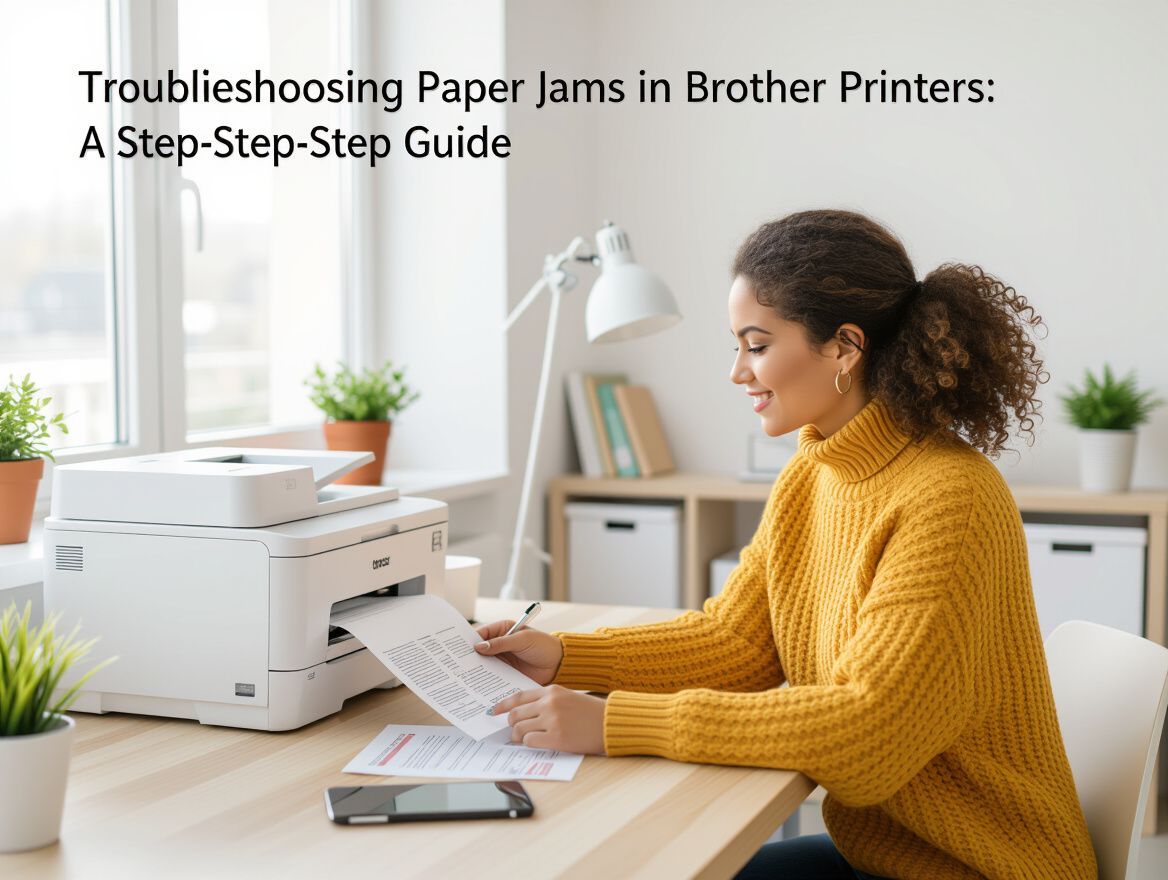
Understanding Paper Jams in Brother Printers
Paper jams are a common frustration for Brother printer users, often leading to significant disruptions in productivity. These issues can arise from various factors, including improper paper loading, the use of unsuitable paper types, or wear and tear on printer components. Understanding these causes is crucial for effective troubleshooting and resolution.
The impact of paper jams extends beyond mere inconvenience; they can halt printing tasks, causing delays and increasing user frustration. If left unresolved, frequent jams can also lead to more serious damage to the printer, potentially resulting in costly repairs.
In this guide, we will explore practical solutions to effectively address paper jams in Brother printers. From identifying the common causes to step-by-step troubleshooting techniques, our aim is to help you regain control over your printing tasks and minimize downtime.
Common Causes of Paper Jams
Understanding the common causes of paper jams in Brother printers can help you troubleshoot effectively and prevent future issues. Here are the main factors contributing to these frustrating interruptions:
-
Incorrect Paper Loading: One of the most frequent causes of paper jams is improper loading of the paper into the tray. Ensure that the paper is aligned correctly and that the paper guides are snug against the stack without being overly tight.
-
Use of Inappropriate Paper Types: Using paper that is damaged, curled, or of a type not recommended for your Brother printer can lead to jams. Always refer to the printer’s manual to confirm the suitable paper types and sizes.
-
Dirty or Worn Rollers: Over time, the rollers in your printer can accumulate dust and debris, or even wear out. Regular cleaning of the rollers with isopropyl alcohol can help maintain their effectiveness and reduce the chances of paper jams.
-
Mechanical Issues Within the Printer: Internal mechanical failures, such as broken gears or misaligned components, can also cause paper jams. Regular maintenance checks can help identify these issues early on, allowing for timely repairs.
By being aware of these factors, you can take proactive steps to minimize the risk of paper jams and ensure smoother printing experiences with your Brother printer.
Preventive Measures to Avoid Paper Jams
To minimize the risk of paper jams in your Brother printer, consider implementing the following preventive measures:
-
Use Recommended Paper Types and Sizes: Always select paper that meets the specifications outlined in your printer’s user manual. Avoid using damaged, curled, or excessively shiny paper, as these can lead to feeding issues.
-
Regular Cleaning of Rollers and Paper Guides: Dust and debris can accumulate over time, affecting the printer's performance. Clean the rollers and paper guides regularly with isopropyl alcohol to maintain optimal function.
-
Properly Adjust the Paper Length Guide: Ensure that the paper length guide is correctly aligned with the size of the paper you are using. This helps to prevent misfeeds and jams caused by improper paper loading.
-
Fanning the Paper Stack Before Loading: Before placing a stack of paper into the tray, fan it out to prevent sheets from sticking together. This simple step can significantly reduce the chances of paper jams.
By following these guidelines, you can enhance the reliability of your Brother printer and reduce the frequency of paper jams, ensuring a smoother printing experience.
Step-by-Step Troubleshooting for Paper Jams
Experiencing a paper jam in your Brother printer can be frustrating, but following a systematic approach can help you resolve the issue effectively. Here’s a step-by-step guide to help you troubleshoot and clear paper jams:
-
Turn Off the Printer
Begin by turning off the printer and unplugging it from the power source. This ensures your safety while working on the printer and prevents any potential damage during the troubleshooting process. -
Remove Jammed Paper
- Open the printer cover and carefully inspect the paper path for any visible jams.
- Gently pull out any jammed paper, being cautious not to tear it. If the paper is stuck, consider using tweezers for better grip.
- Also, check the paper tray and remove it to clear any paper that may be lodged there.
-
Clean the Rollers
Dust and debris can accumulate on the rollers, leading to jams. Use a lint-free cloth lightly dampened with isopropyl alcohol to clean the rollers. Ensure they are free from any sticky residue or debris that could cause future jams. -
Check for Obstructions
Inspect the printer for any foreign objects or debris, such as paper clips or torn paper fragments, that might obstruct the paper path. Removing these obstructions is crucial for smooth operation. -
Reinsert Paper Correctly
- Ensure that the paper is loaded correctly in the tray. Fan the stack of paper before placing it in the tray to avoid sticking.
- Adjust the paper guides to fit the paper size being used. Misaligned guides can lead to improper feeding and subsequent jams.
-
Test the Printer
After clearing the jam and reloading the paper, plug the printer back in and turn it on. Run a test print to ensure that the printer is functioning correctly and that the paper feeds smoothly without any issues.
Key Considerations
- Paper Quality: Use only recommended paper types and sizes as specified by Brother to minimize the risk of jams.
- Regular Maintenance: Regularly clean the rollers and check for wear and tear, as degraded rollers can contribute to frequent jams.
- Handling Paper: Avoid using damaged or irregularly shaped paper, as well as excessively shiny or textured paper, which can lead to feeding problems.
By following these steps and considerations, you can effectively troubleshoot paper jams in your Brother printer and ensure its optimal performance.
Understanding Trade-offs and Risks
When troubleshooting paper jams in Brother printers, users must consider several trade-offs and risks that can impact both the short-term and long-term functionality of their devices. Addressing these factors proactively can save time, reduce frustration, and minimize potential damage.
-
Use of Non-Recommended Paper: Utilizing paper that is not specifically recommended for Brother printers can lead to increased paper jams. Irregularly shaped, damaged, or excessively textured paper often causes misfeeds and jams. It's crucial to adhere to the manufacturer's guidelines regarding paper type and weight to ensure smooth operation.
-
Neglecting Regular Maintenance: Regular maintenance is vital for the longevity of your printer. Failing to clean the rollers and paper paths can lead to a build-up of debris, increasing the likelihood of jams. Neglecting this aspect can turn minor issues into major mechanical failures, resulting in costly repairs and downtime.
-
Potential Mechanical Failures: If paper jams are not promptly addressed, they can lead to wear and tear on critical components of the printer. Over time, this wear can result in mechanical failures that may require professional servicing. Users should remain vigilant about signs of recurring jams and investigate underlying causes promptly.
By weighing these trade-offs and risks, Brother printer users can make informed decisions that not only resolve immediate paper jam issues but also contribute to the overall health and efficiency of their printing systems.
Frequently Asked Questions
Addressing paper jam issues in Brother printers often raises specific questions among users. Here are some common inquiries and their answers to help you navigate these frustrating situations effectively.
What are the signs of a paper jam?
Signs of a paper jam can vary, but you may notice:
- Error Messages: Your printer may display a "Paper Jam" alert on its screen.
- Unusual Noises: Grinding or clicking sounds can indicate that the paper is stuck.
- Incomplete Prints: If pages are coming out partially printed or crumpled, a jam may have occurred.
- Visible Paper: You may see paper stuck in the feed area or exit tray.
How can I tell if my printer needs maintenance?
Regular maintenance is crucial for optimal printer performance. Signs that your Brother printer may need attention include:
- Frequent Paper Jams: If jams occur regularly despite using the correct paper and loading techniques, maintenance might be needed.
- Poor Print Quality: Faded prints or streaks can signal that the printer requires cleaning or part replacement.
- Unusual Sounds: Any persistent noises during operation could indicate worn components needing maintenance.
- Increased Error Messages: Frequent alerts or malfunctions can be a sign that your printer is due for servicing.
What type of paper should I use to avoid jams?
To minimize the risk of paper jams, it is essential to select the right paper type. Consider the following:
- Standard Weight Paper: Use paper that aligns with the printer's specifications, typically around 20 lb. for general printing.
- Quality Paper: Avoid using damaged, curled, or previously printed paper, as these can lead to feeding issues.
- Recommended Brands: Whenever possible, use paper brands that are recommended by Brother for optimal compatibility and performance.
By understanding these common questions and their answers, you can better manage paper jam issues in your Brother printer, ensuring a smoother and more efficient printing experience.
Conclusion and Next Steps
In summary, troubleshooting paper jams in Brother printers involves a series of practical steps that can significantly improve your printing experience. Key actions include:
- Turning Off the Printer: Always start by powering down your printer to prevent any potential damage during the troubleshooting process.
- Removing Jammed Paper: Carefully check and extract any stuck paper from the printer, ensuring no pieces remain in the mechanism.
- Cleaning Rollers and Guides: Regular maintenance of the rollers and paper guides with isopropyl alcohol can prevent future jams.
- Proper Paper Loading: Ensure that paper is loaded correctly and that the paper length guide is adjusted to fit the size of the paper being used.
To prevent future paper jams, consider implementing the preventive measures discussed, such as using the correct paper types, regularly cleaning your printer, and properly fanning the paper before loading.
Encouraging regular maintenance not only enhances performance but also extends the life of your printer. If you continue to experience issues, don’t hesitate to consult Brother's support resources or engage with user communities for additional insights and assistance. Taking proactive steps today can save you time and frustration tomorrow, ensuring your Brother printer remains a reliable tool for your printing needs.