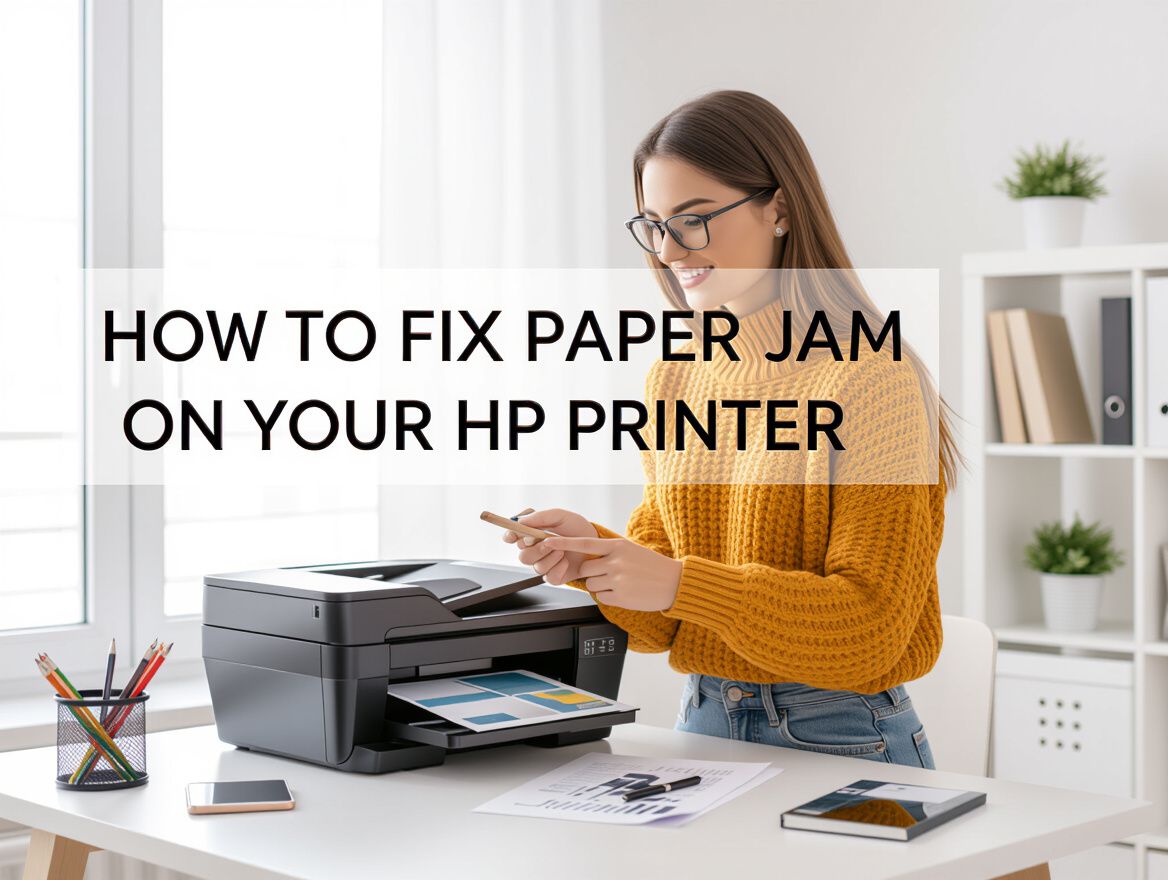
How to Fix a Paper Jam on Your HP Printer
Understanding Paper Jams in HP Printers
Paper jams are a frequent issue faced by HP printer users, often leading to frustration and downtime. Understanding the common causes of these jams can help you troubleshoot effectively and minimize disruptions.
Common Causes of Paper Jams in HP Printers
-
Misaligned Paper: If the paper isn't loaded properly in the tray, it can lead to jams. Ensure that the paper is aligned correctly and that the guides are snug against the edges.
-
Overfull Paper Tray: A tray that exceeds its capacity can cause sheets to misfeed or stick together. Regularly check and adjust the paper quantity to avoid this issue.
-
Moisture and Humidity: High humidity can cause paper to clump together, leading to multiple sheets being pulled through at once. Storing paper in a cool, dry place can help mitigate this problem.
-
Dirty Rollers: Dust and debris on the rollers can prevent them from gripping the paper properly. Regular cleaning of the rollers can reduce the likelihood of jams.
-
Worn or Damaged Parts: Over time, components such as rollers and gears can wear out, leading to increased chances of jams. If issues persist despite troubleshooting, consider checking for parts that may need replacement.
By identifying these common causes, HP printer users can take proactive steps to prevent paper jams, ensuring smoother operation and less downtime in their printing tasks.
Essential Troubleshooting Checklist
When dealing with a paper jam in your HP printer, following a systematic approach can help you quickly identify and resolve the issue. Here’s a concise checklist to guide you through the troubleshooting process:
-
Check for Misaligned Paper: Ensure that the paper is loaded correctly in the tray. The paper guides should fit snugly against the edges of the paper stack without causing it to bend or warp.
-
Inspect the Paper Tray for Overloading: Verify that the paper tray is not overloaded. Exceeding the recommended paper capacity can lead to jams. Remove excess paper if necessary.
-
Evaluate the Condition of the Printer Rollers: Dirty or worn-out rollers can cause feeding issues. Check the rollers for dust or debris and clean them gently with a soft, lint-free cloth. If the rollers appear worn, consider replacing them.
-
Look for Jammed Paper: Open the printer cover and check for any jammed paper. Gently pull out any visible paper, ensuring not to tear it. If you encounter resistance, refer to the printer’s manual for specific removal instructions.
-
Check for Moisture: Humidity can cause paper to stick together, leading to jams. Ensure that your paper is stored in a cool, dry place and is in good condition before loading it into the printer.
-
Run a Printer Self-Test: After addressing the above points, run a self-test to see if the printer is functioning correctly. This can help confirm that the jam issue has been resolved.
Following these steps can significantly reduce the likelihood of encountering paper jams in your HP printer, enhancing your overall printing experience.
Step-by-Step Guide to Fixing Paper Jams
Experiencing a paper jam in your HP printer can be frustrating, but with the right approach, you can effectively resolve the issue. Follow these detailed steps to locate and remove jammed paper safely, and reset your printer afterward.
1. Open the Printer
- Power Off: Start by turning off your printer and unplugging it for safety.
- Access Panels: Depending on your HP printer model, locate the main access panel. This is usually where you can access the print cartridges.
- Check the Paper Tray: Remove any excess paper from the tray and ensure it is correctly aligned.
2. Locate the Jammed Paper
- Inspect the Printer: Look for any visible signs of jammed paper in the paper feed area and output tray. If your model has a rear access door, open it to check for paper stuck in that section.
- Remove the Cartridges (if necessary): For some models, you may need to remove the ink or toner cartridges to get better access to the jammed paper.
3. Techniques for Safely Removing Jammed Paper
- Gentle Pull: Grasp the jammed paper firmly but gently. Pull it out slowly and evenly to avoid tearing.
- Use Tweezers: If the paper is stuck deep within the printer, consider using a pair of tweezers to grasp and pull it out.
- Check for Small Pieces: Ensure no torn pieces of paper remain inside, as these can cause future jams.
4. Reset the Printer
- Close All Access Panels: Once the paper is removed, make sure all panels and doors are securely closed.
- Reconnect Power: Plug the printer back in and turn it on.
- Run a Test Print: To ensure everything is functioning correctly, print a test page to verify that the jam has been resolved.
Additional Tips
- Use Quality Paper: To minimize future jams, use high-quality, compatible paper as recommended by HP.
- Regular Maintenance: Clean the printer rollers and check for any wear and tear periodically to prevent jams.
- Consult the Manual: If you encounter persistent issues, refer to your printer's manual for model-specific troubleshooting tips.
By following these steps, you can effectively troubleshoot and fix paper jams in your HP printer, ensuring a smoother printing experience in the future.
Common Risks When Dealing with Paper Jams
Addressing paper jams in your HP printer can be straightforward, but several risks can lead to further complications if not handled properly. Here are key considerations to keep in mind:
-
Avoiding Damage to Printer Components: Forcefully pulling out jammed paper can damage internal components such as rollers and sensors. Always follow the manufacturer's guidelines for safely removing paper to prevent costly repairs.
-
Risks of Using Improper Tools or Methods: Using tools not designed for printer maintenance, like scissors or knives, can scratch or break parts of your printer. Stick to recommended tools, such as tweezers or your hands, to carefully extract jammed paper.
-
When to Seek Professional Help: If you encounter repeated paper jams despite following troubleshooting steps, it may indicate a deeper mechanical issue. In such cases, contacting HP support or a professional technician can save time and prevent further damage.
By being mindful of these risks, you can effectively troubleshoot paper jams while safeguarding your printer's functionality.
Frequently Asked Questions About HP Printer Paper Jams
When dealing with paper jams in HP printers, users often have similar concerns. Here are some common questions and their answers to help troubleshoot and prevent these frustrating issues.
Why does my HP printer keep jamming?
Frequent paper jams can stem from various factors, including:
- Misaligned Paper: Incorrectly loaded paper can cause jams. Ensure that the paper is stacked correctly and not overfilled.
- Overfilled Paper Tray: If the paper tray is too full, the printer may struggle to pick up sheets. Always adhere to the manufacturer's recommended paper capacity.
- Moisture: Humidity can cause multiple sheets to stick together. Store your paper in a dry area to avoid this issue.
What type of paper is best to prevent jams?
Using high-quality, compatible paper can significantly reduce the likelihood of jams. Consider the following:
- Weight and Thickness: Stick to the weight specifications provided by HP for your printer model.
- Paper Finish: Smooth, non-textured paper generally feeds better than rough or highly textured options.
- Brand Compatibility: While generic brands may be cheaper, they might not meet the quality standards required for your HP printer.
How can I maintain my HP printer to avoid future jams?
Regular maintenance is key to preventing jams:
- Clean the Rollers: Dust and debris can accumulate on the paper feed rollers. Cleaning them regularly can enhance their performance.
- Check for Obstructions: Periodically inspect the printer for any foreign objects or debris that may disrupt the paper path.
- Update Firmware: Keeping your printer's firmware up to date can improve performance and reduce issues, including paper jams.
By addressing these common questions, HP printer users can better understand how to manage and prevent paper jam issues effectively.
Final Thoughts on Managing Paper Jams
Resolving paper jams on your HP printer is often straightforward when you follow a systematic approach. Key troubleshooting steps include:
- Check the Paper Tray: Ensure that the paper is loaded correctly and is not overfilled.
- Inspect for Obstructions: Look for any foreign objects or torn pieces of paper that might be causing the jam.
- Clean the Rollers: Dust and debris can affect the rollers’ grip on the paper, so regular cleaning is essential.
- Use Compatible Paper: Choosing the right type and quality of paper can significantly reduce the likelihood of jams.
In addition to these troubleshooting steps, proactive maintenance can help prevent future issues. Regularly check and clean the paper feed mechanisms and ensure that the printer is in a suitable environment, free from excessive humidity or dust.
Lastly, always opt for high-quality, compatible materials. Using paper that is designed for your specific HP model can mitigate many common paper jam issues, enhancing your printer's overall performance. By following these guidelines, you can maintain your printer's efficiency and minimize disruptions caused by paper jams.